Things to know
- Only transactions performed that required a payment can be viewed in the transaction log.
- If you’re an admin user, you can view all financial transactions made during a particular date range.
- If you’re a user who needs to see their transactions, ask your administrator to assign you the ‘report manager’ special permission.
- You’ll see a list of recent transactions, including the date and time, description and user.
- Increase the results displayed on the page to up to 100 by using the drop down menu and clicking Update.
- You can only search for records up to 15 months old, and can only search for transactions made within one partner account.
- If you process a transfer as a seller, the transaction will appear in the action log instead.
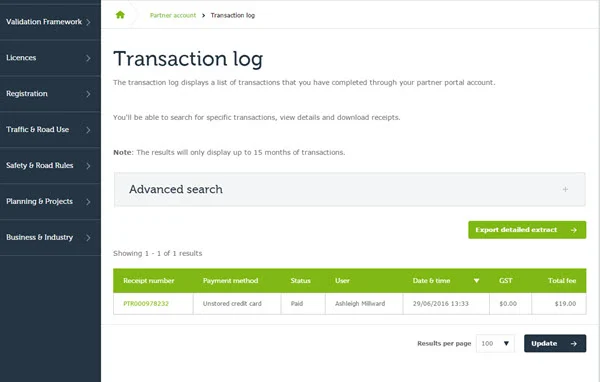
The transaction log contains information on all transaction performed in your myVicRoads partner account requiring payment.
To see a breakdown of the fees paid on a transaction:
- Click Transaction log on your dashboard or Key tasks.
- Search for the payment to which the transaction was attached e.g. by Receipt number PTR000000004 (You can use the advanced filter function to find a transaction using a registration number or date – see advanced filtering for more information).
- Click the Receipt number hyperlink (Receipt details with all transactions display).
- Click the item hyperlink e.g. New Registration – PTV 001.
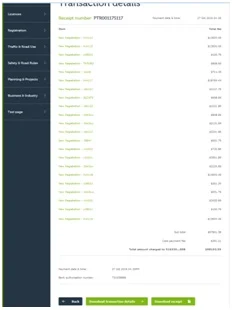
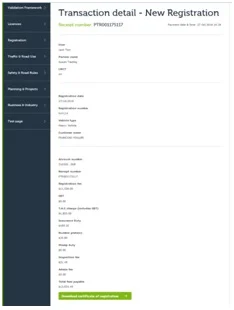
The fee breakdown is displayed for that transaction.
Tips
- You can use your browser’s print facility to print this page.
- A certificate of registration can be downloaded for a new registration on this screen.
A CSV file (which can be opened in Microsoft Excel) can be downloaded for any search results returned in a transaction log advanced search.
To download the CSV:
- Perform an advanced search (limit the date range to 1 months worth of data for optimised performance).
- Click Export detailed extract.
The file is downloaded and can be opened in a spreadsheet (e.g. Microsoft Excel).
To see a breakdown of the fees paid on a transaction:
- Click Transaction log on your dashboard or Key tasks.
- Search for the payment to which the transaction was attached, e.g. by Receipt number PTR000000004 (you can use the advanced filter function to find a transaction using a registration number or date – see advanced filtering for more information).
- Click the Receipt number hyperlink (Receipt details with all transactions display).
- Click Download receipt.
From this screen you can print the receipt or save the pdf document in a file.
To see a breakdown of the fees paid on a transaction:
- Click Transaction log on your dashboard or Key tasks.
- Search for the payment to which the transaction was attached, e.g. by Receipt number PTR000000004 (you can use the advanced filter function to find a transaction using a registration number or date – see advanced filtering for more information).
- Click the Receipt number hyperlink (Receipt details with all transactions display).
- Click the item hyperlink e.g. New Registration – PTV 001.
A certificate of registration can be downloaded for a new registration on this screen.
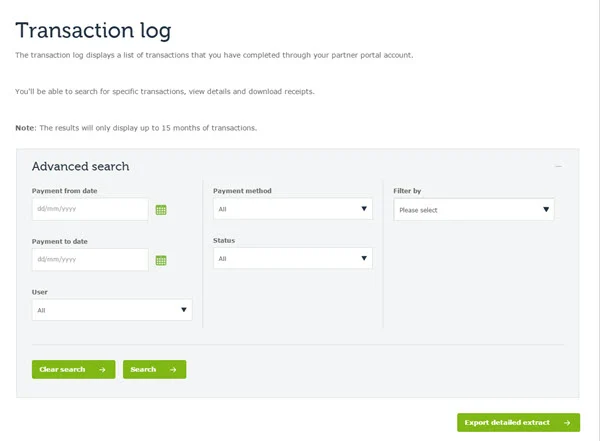
To do a search by payment date, user, payment method, status, registration number or receipt number, click on the Advanced search drop down menu. Remember, only admin users can see all user transactions.
Search by payment date
To search by payment date:
- Enter a payment from date and a payment to date. To search for transactions made on the same day, enter the day’s date in both fields.
- Click Search. Results display in a table at the bottom of the page.
- Click Export detailed extract to download the information in CSV files.
- Click Clear search to perform another search.
Search by payment method
To search by payment method:
- All options are selected by default. Click Clear to change options.
- Choose from the payment method options in the drop down list.
- Click Search. Results display in a table at the bottom of the page.
- Click Export detailed extract to download the information in CSV files.
- Click Clear search to perform another search.
Search by status
To search by transaction status - paid, unsuccessful, refunded and not paid:
- All options are selected by default. Click Clear to change options.
- Choose from the status options in the drop down list.
- Click Search. Results display in a table at the bottom of the page.
- Click Export detailed extract to download the information in CSV files.
- Click Clear search to perform another search.
Search by user
Admin users can search for transactions made by all users. Users can only search for their own transactions. To search by user:
- All options are selected by default. Click Clear to change options.
- Select and deselect options by clicking the check boxes.
- Click Search.
- Search results display in a table at the bottom of the page.
- Click Export detailed extract to download the information in CSV files.
- Click Clear search to perform another search.
Filter by
To search by receipt number or registration number:
- Select one in the dropdown menu and enter the relevant number in the field below.
- Click Search.
- Search results display in a table at the bottom of the page.
- Click Export detailed extract to download the information in CSV files.
- Click Clear search to perform another search.